⚡
Save time
Convert dozens of FTP site records in seconds instead of entering every connection manually.
Convert FileZilla Site Manager XML into the JSON format used by the VS Code FTP-Simple extension. Skip repetitive manual entry, review the result immediately, and copy it straight to the clipboard.
A focused interface makes the conversion straightforward for anyone.
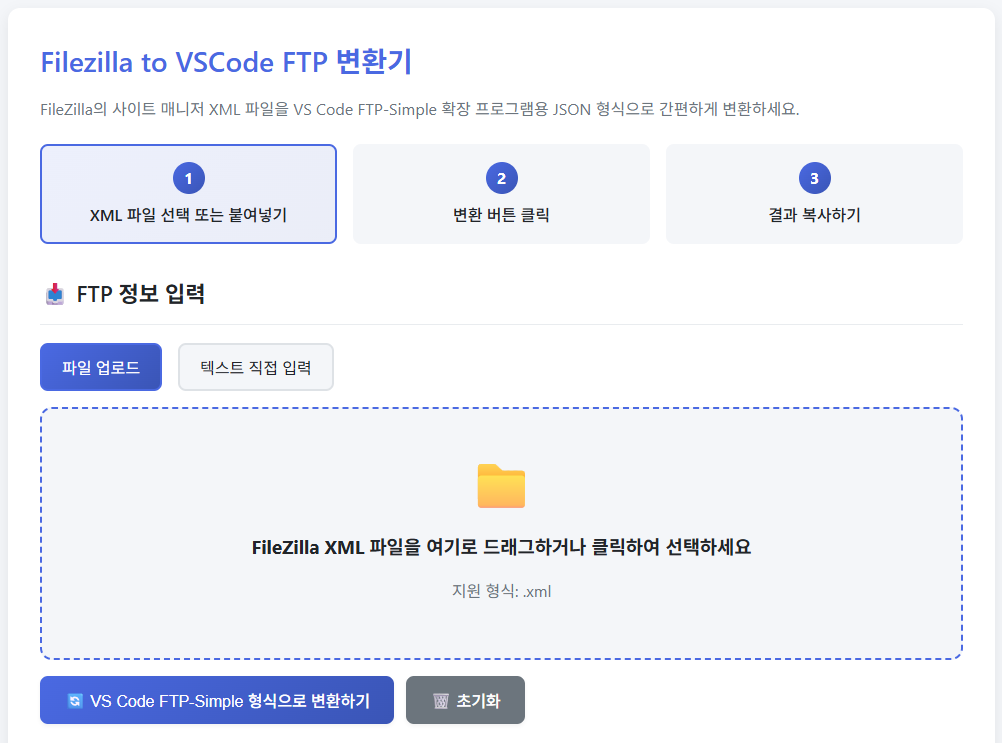
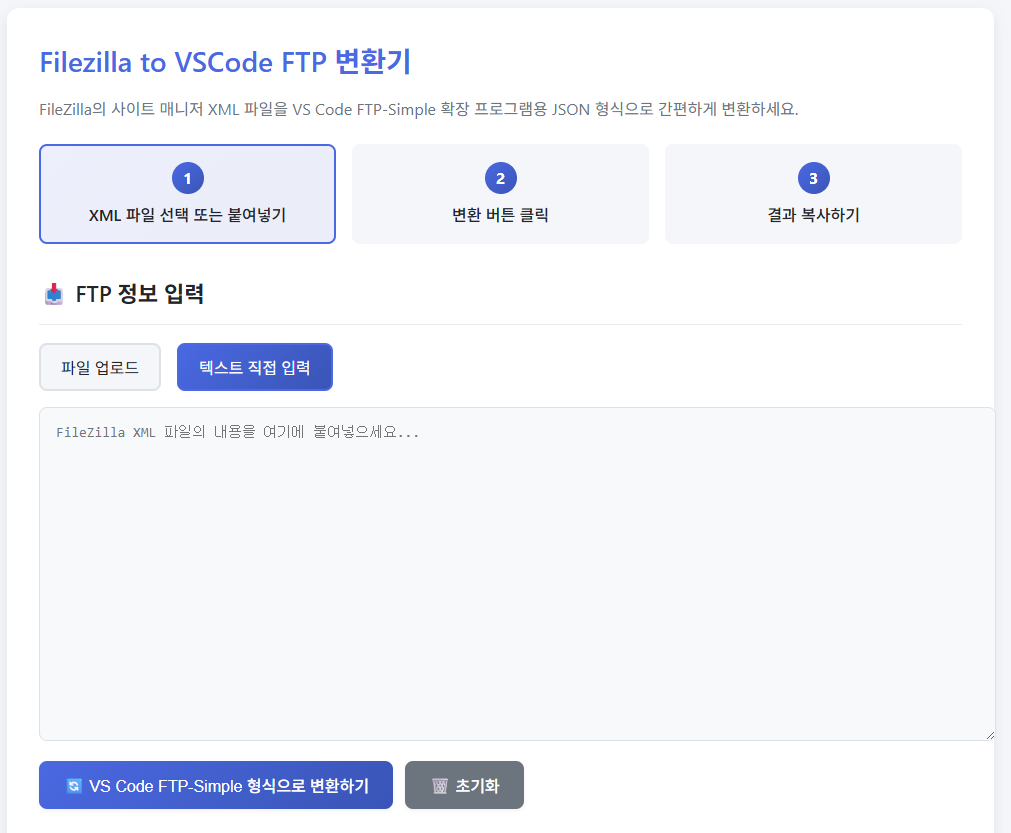
Automate the repetitive work involved in moving FTP connections from FileZilla to VS Code.
Convert dozens of FTP site records in seconds instead of entering every connection manually.
Map hosts, ports, usernames, passwords, and other settings consistently to reduce configuration mistakes.
The converted JSON is copied automatically so you can paste it directly into the VS Code settings file.
Choose an XML file or paste XML manually to fit different migration situations.
Use the features you need without navigating through unnecessary options.
Use the converter without limits in personal or commercial projects.
Open the tool, load your FileZilla XML, and run the conversion.
Launch the portable application directly without a separate installation process.
Click “Select FileZilla XML file” to load sitemanager.xml, or paste the XML data manually.
Click “Convert to VS CODE FTP-SIMPLE CONFIG file.” The JSON appears on screen and is copied to the clipboard, ready to paste into VS Code.
The converter parses the FileZilla XML structure and maps it to the JSON format recognized by the VS Code FTP-Simple extension.
FileZilla Site Manager stores its settings in sitemanager.xml. These are the usual locations:
Paste the converted JSON into the FTP-Simple extension configuration file in VS Code.
The main FileZilla XML fields are mapped to VS Code JSON as follows.
Malformed XML cannot be converted reliably. For best results, use an original sitemanager.xml file exported or created by FileZilla.
Common questions about converting FTP settings.
On Windows, sitemanager.xml is normally in %APPDATA%\FileZilla\. Enter %APPDATA% in the File Explorer address bar to open the correct location quickly.
Install FTP-Simple, open the Command Palette (Ctrl/Cmd+Shift+P), and choose “ftp-simple: Config.” Paste the converted JSON into the opened ftp-simple-temp.json file and save it.
Yes, when a password is stored in the FileZilla XML. If FileZilla did not save it, the JSON will not contain it and you must enter it manually.
Yes. The converter detects both FTP and SFTP configurations so you can move existing SFTP connections into VS Code.
Use the original sitemanager.xml from FileZilla and confirm that the file contains valid XML. Damaged or manually altered XML may fail to parse.
Yes. It is free with no usage limits for both personal and commercial projects.
When switching from FileZilla to VS Code,
automate the repetitive configuration work.
Contact
Tell us where you are and what you want to achieve. We’ll outline a practical scope, process, and estimated budget.
DIRECT
Your inquiry has been received. We will reply within one business day with a scope and an estimate.